In the exporto portal, you have the option of setting up your own returns portal for your customers and customizing it—for example, by specifying up to 10 specific reasons for returns. You can also customize the returns portal for the respective target markets and equip it with various photos and input masks to tailor it optimally to the needs of your end customers.
Example:
You can provide your end customers with the link to this portal so that they can register returns themselves and print out the return label.
Login to the returns portal for end customers
Your end customers can log in to the returns portal quickly and easily using the email address and order number (customer-facing number) provided in the order.
Note: If you would like to use a returns portal for your store in the UK, you can choose between email and postal code for the login when setting up the returns portal.
Order overview in the returns portal
After logging in, your end customers are taken to the order overview, where they can select all or individual items for return.
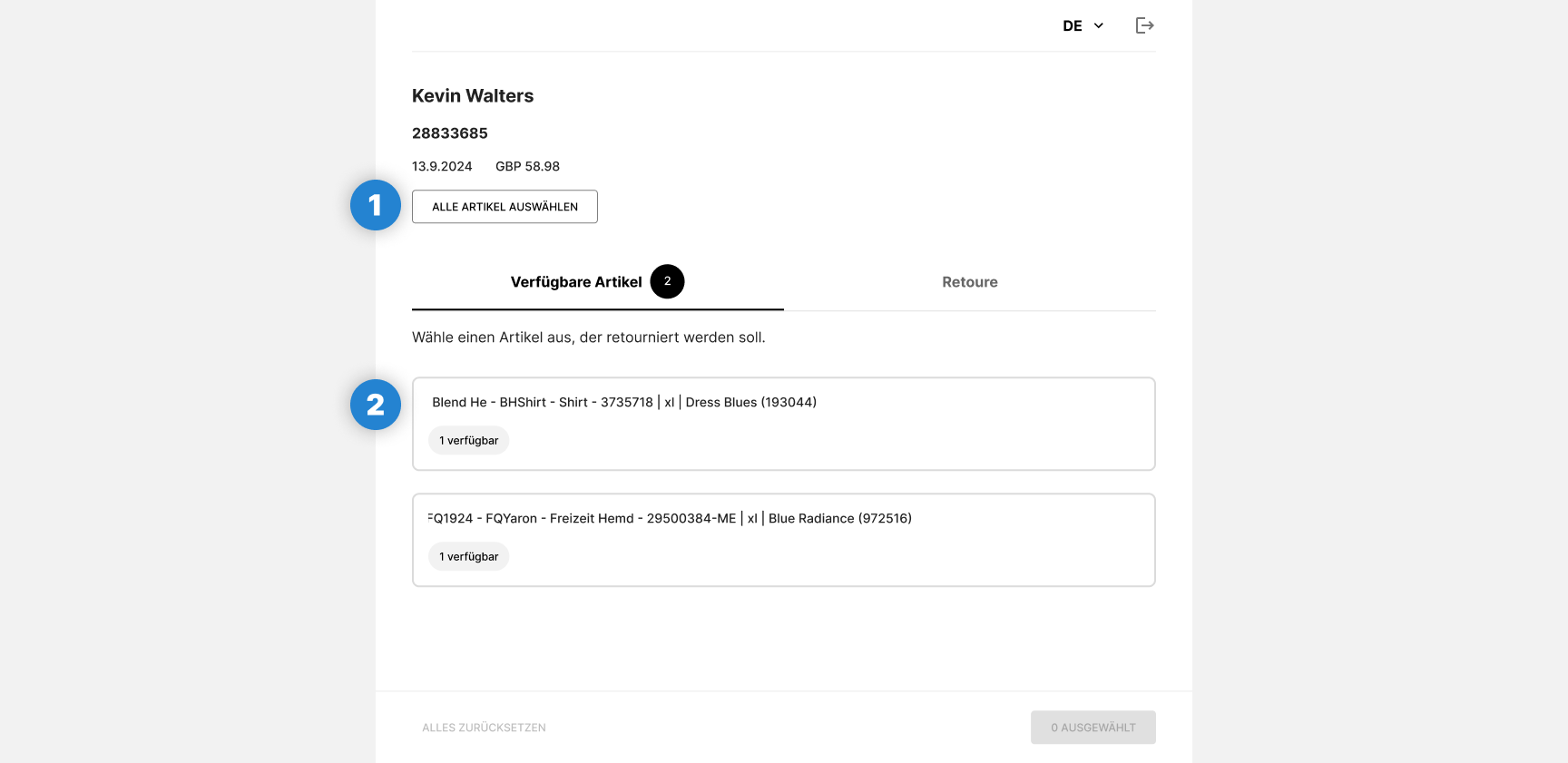
(1) All items can be registered for return at the same time using the “Select all items” button.
(2) Alternatively, customers can select specific items and quantities they wish to return in the overview.
Register returns
Clicking on an item opens a selection window where end customers can specify the reason for return. The reasons for return displayed correspond to the settings you have stored for the respective target market in the returns portal.
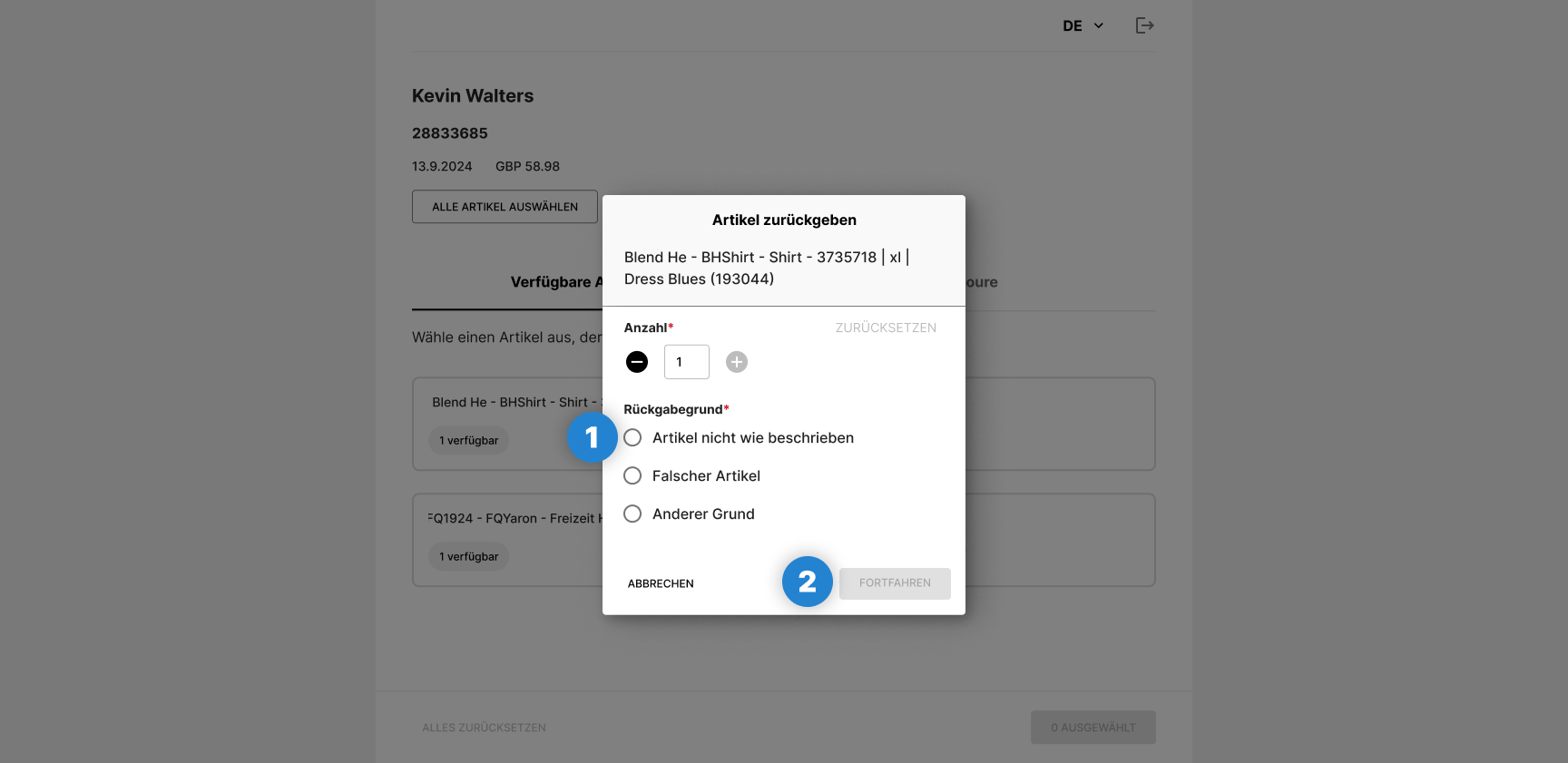
End customers select the appropriate reason for return for each item and click on “Continue.”
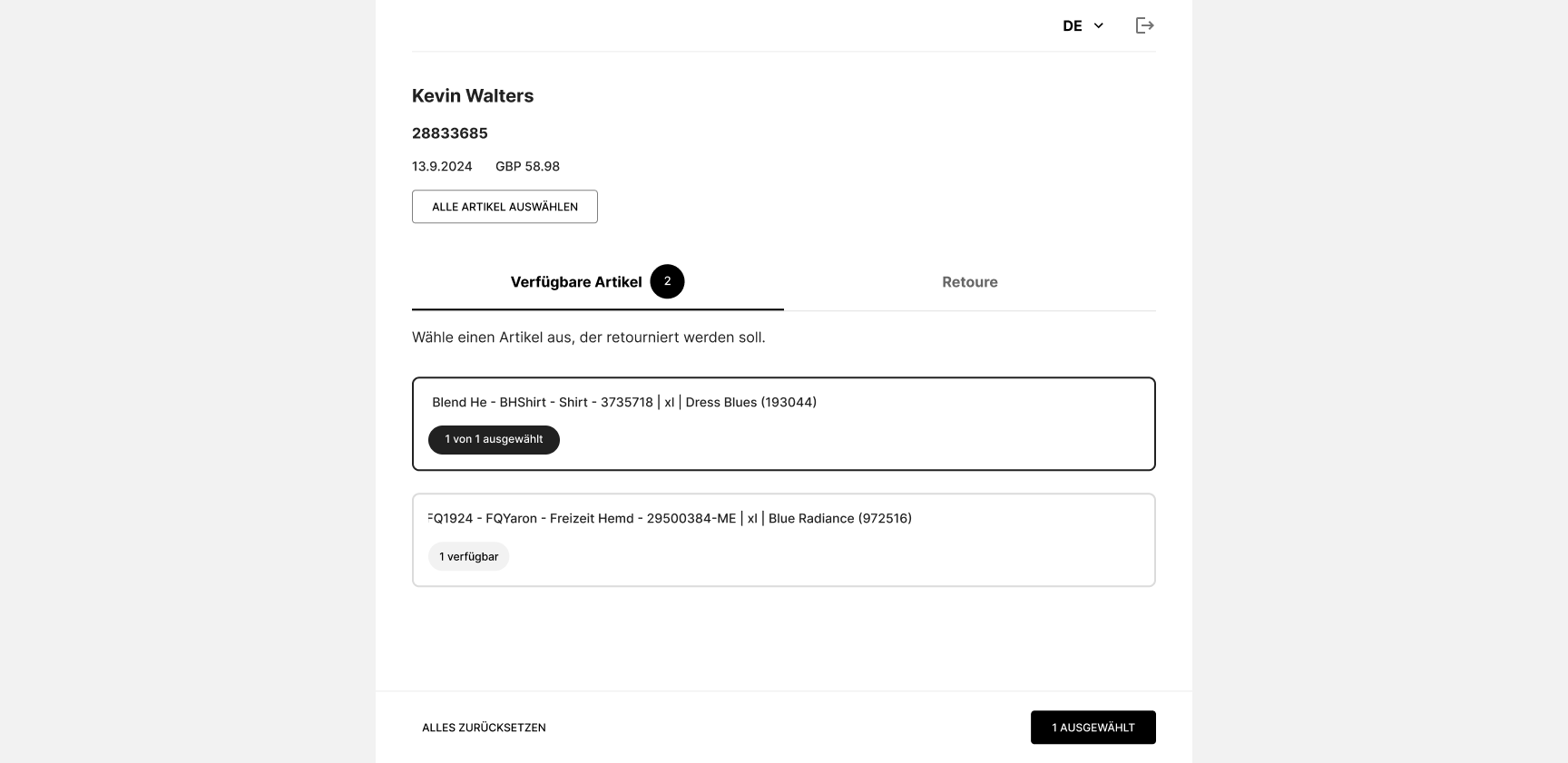
Once all items have been selected, they confirm the process by clicking on the “Selected” button.
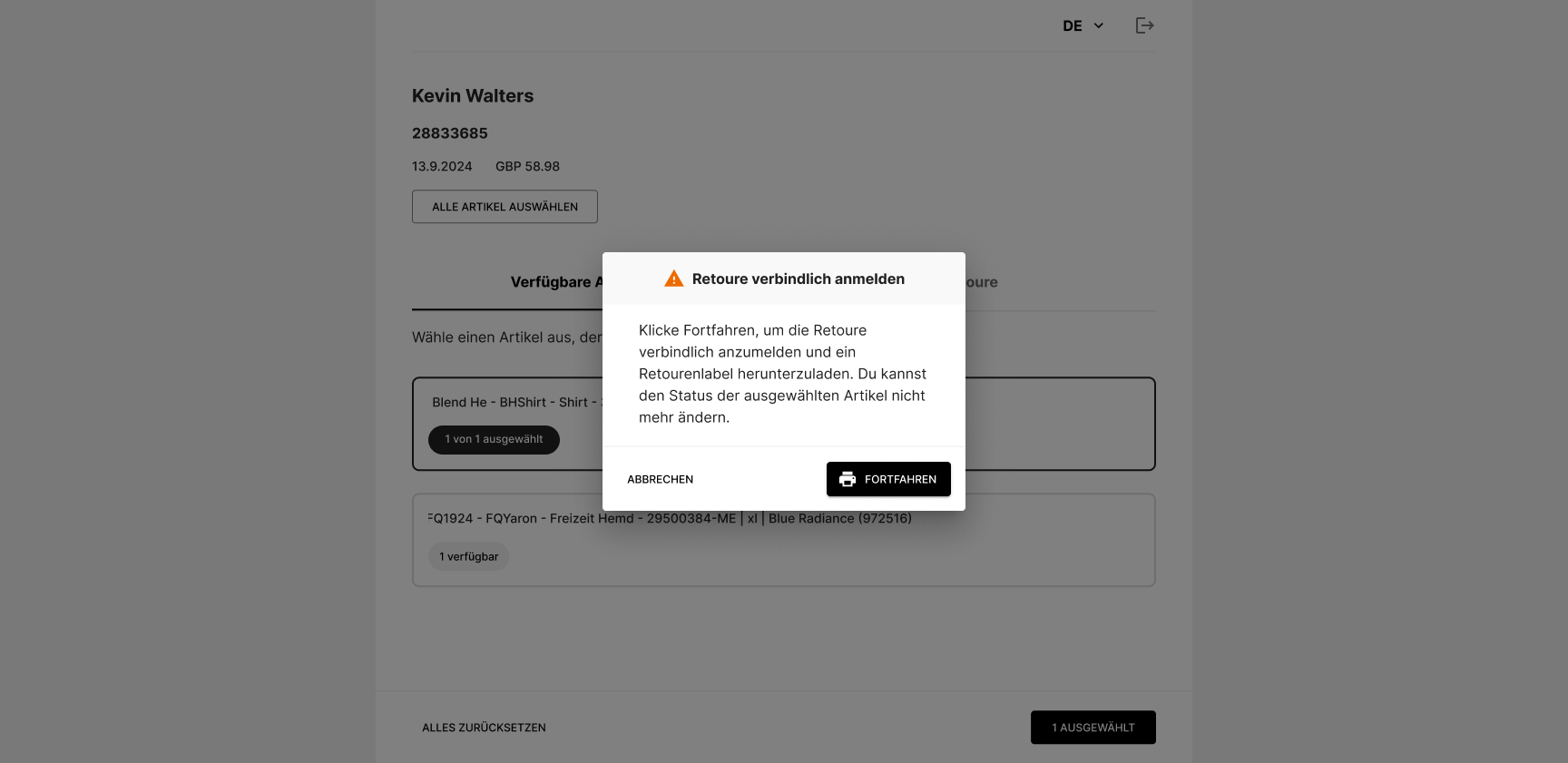
The “Continue” button registers the return and creates the return label. This can then be downloaded as a PDF and printed. The label just needs to be attached to the parcel and sent back.
Comments
0 comments
Please sign in to leave a comment.